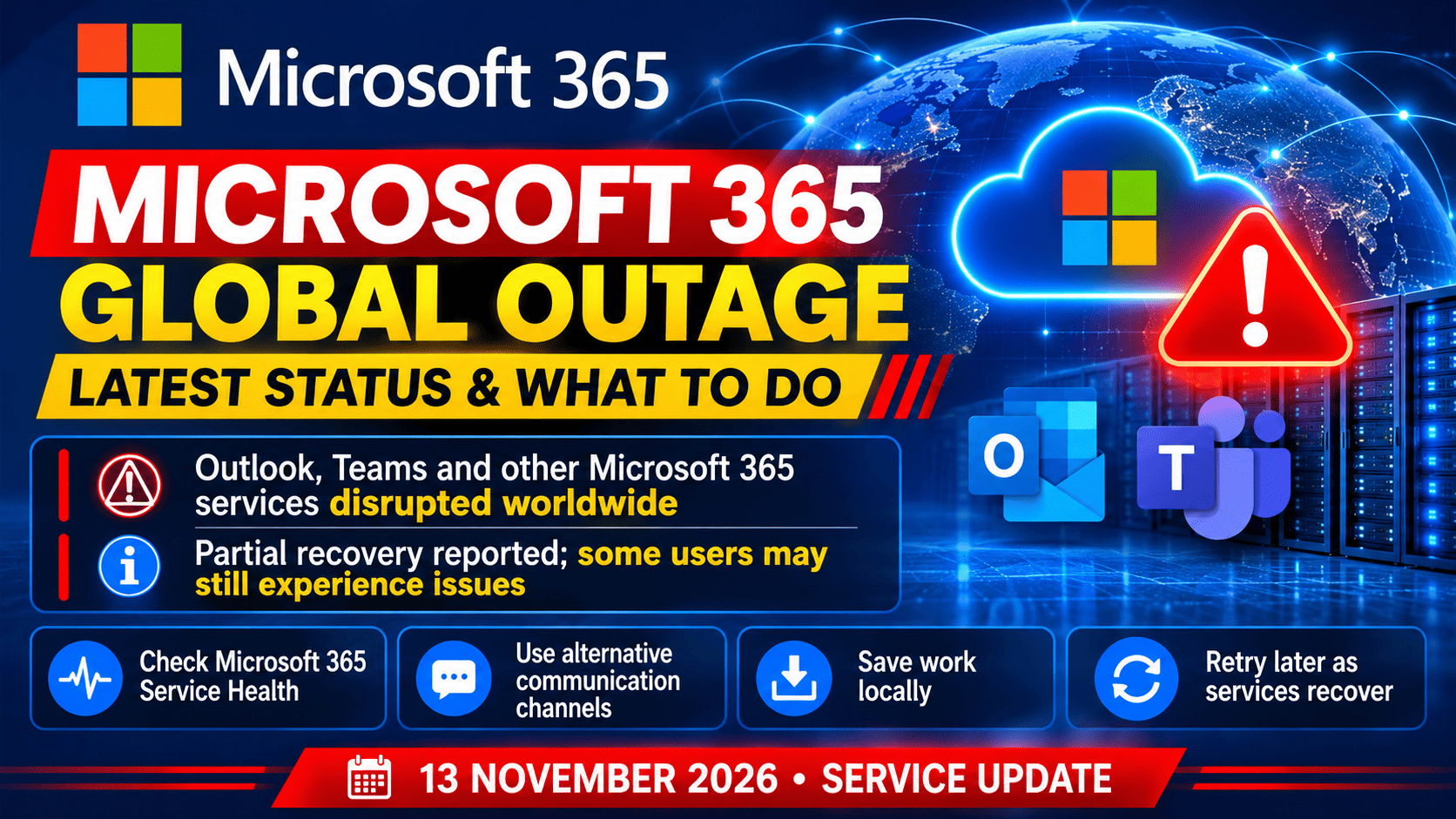
Microsoft 365 Global Outage: Latest Status and What to Do
Are Outlook emails failing to load, is Microsoft Teams not connecting, or are OneDrive files taking too long to sync? When Microsoft 365 services stop working as expected, users may search for information about a Microsoft 365 global outage.
A service outage can affect one or more Microsoft 365 apps, including Outlook, Teams, OneDrive and SharePoint. However, reports from some users do not necessarily mean that every Microsoft 365 service is down worldwide. The impact can vary by service, region and organization.
How to Check the Latest Microsoft 365 Status
For the most reliable information, check Microsoft’s official service-status resources:
- Visit the Microsoft service status page.
- If you are an organization’s Microsoft 365 administrator, open the Microsoft 365 admin center and go to Health → Service health.
These sources can provide information about known incidents, affected services, current status and updates from Microsoft. Third-party outage trackers may show user reports, but they should not be treated as official confirmation.
Which Services Could Be Affected?
Depending on the incident, users may experience problems with services such as:
- Outlook and Exchange Online: Email access, sending or receiving messages
- Microsoft Teams: Chats, meetings, calls or file sharing
- OneDrive: File access, uploads or syncing
- SharePoint: Websites, shared documents or collaboration tools
- Microsoft 365 apps: Features that rely on online sign-in, cloud storage or connected services
An outage may affect only certain features. For example, a desktop app might still open, while online collaboration or cloud syncing is unavailable.
What to Do During a Microsoft 365 Outage
If one or more services are not working, try these steps:
- Check Microsoft’s service status before changing your device or account settings.
- Check whether the issue affects other users in your organization. This can help distinguish a wider service problem from a local one.
- Test your internet connection by opening another website or switching networks, if possible.
- Try another device or browser to see whether the problem is limited to one app or device.
- Save important work locally where possible. Be careful with files that have not finished syncing.
- Follow updates from your organization’s IT team if your work account is managed by an employer or school.
Avoid repeatedly changing your password, reinstalling apps or deleting synced files before checking the official status. These steps may not resolve a service-side issue and could create additional problems.
Is Microsoft 365 Down for Everyone?
Not always. A reported Microsoft 365 problem may affect a specific service, region, account or organization rather than all users. If Microsoft’s status page shows no known issue, the cause could be a local internet connection, device settings, account permissions or an organization-specific configuration.
If the problem continues after the official status appears normal, contact your organization’s IT administrator or Microsoft support.
Frequently Asked Questions
How can I confirm a Microsoft 365 outage?
Check Microsoft’s official service status page. Administrators can also review Service health in the Microsoft 365 admin center.
How long do Microsoft 365 outages last?
There is no fixed duration. The time required to restore a service depends on the cause and scope of the incident. Follow Microsoft’s official updates for the latest information.
Can I use Microsoft 365 apps during an outage?
Some desktop apps may still open files saved on your device. However, online features such as email, meetings, cloud storage and file syncing may be disrupted. Unsaved or unsynced changes should be handled carefully.
Final Thoughts
A Microsoft 365 outage can interrupt email, meetings and file sharing, but its impact may differ between users and services. Check Microsoft’s official status updates first, save work where possible and follow guidance from your IT team. For the latest confirmed information, rely on Microsoft’s service-health notices rather than unverified reports.